
Dark Mode is a very useful for users to help them reduce eye strain and saves battery life, especially with the new OLED displays on devices. To cope up with this Instagram also allows users to take the benefit of this feature on its app. However, not everyone wants the dark theme as the content and the interface may not be appealing and comfortable for the users when compared with the light interface.
If you’ve also enabled Dark Mode on Instagram and now want to switch back to the light theme, the process is very simple and easy. In this post, we’ll guide you on how to turn off Dark Mode on Instagram across iPhone, Android, and desktop in 2025 with the quick step by step process.
Why Turn Off Dark Mode on Instagram?
Dark Mode is widely used by the users these days, however you may want to turn off the dark mode on Instagram for various reasons. Some of the important reasons why you should turn on the light mode on Instagram are:
- Light mode provides better visibility in bright environments
- Customize themes and use app in light interface
- It may sometimes be difficult to read contents in dark mode
- The contents visually appealing in light mode as compared to dark mode
How to Turn Off Dark Mode on Instagram
If you had earlier turned on the dark mode on Instagram and now want to turn it off and use the app in light mode, you can get it done in simple and easy steps:
Step 1: Open the Instagram app on your device.
Step 2: Tap on the profile icon (your proile picture) on the bottom left corner.
Step 3: Tap the Menu (☰) icon from your profile page.
Step 4: Select Settings and privacy from the menu options.
Step 5: Go to Accessibility or Display options as per your device.
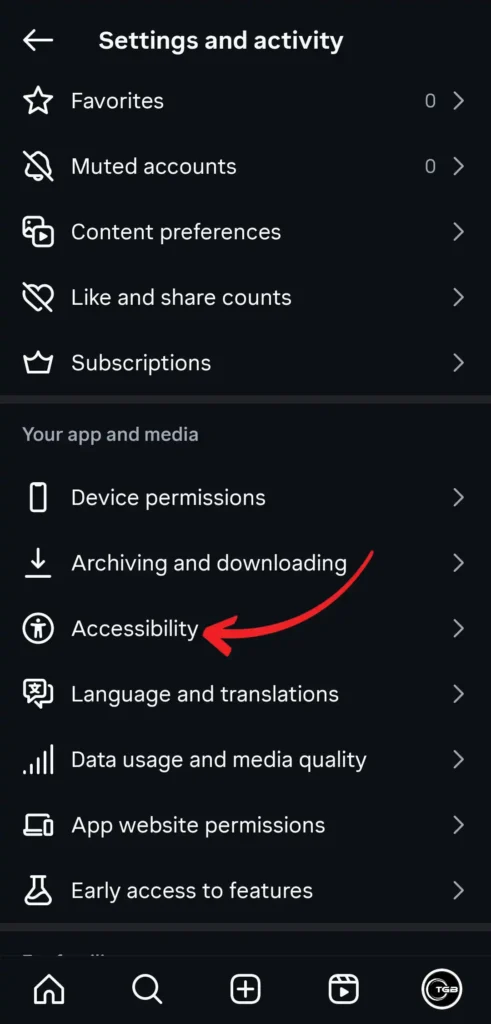
Step 6: Check for Dark Mode option.
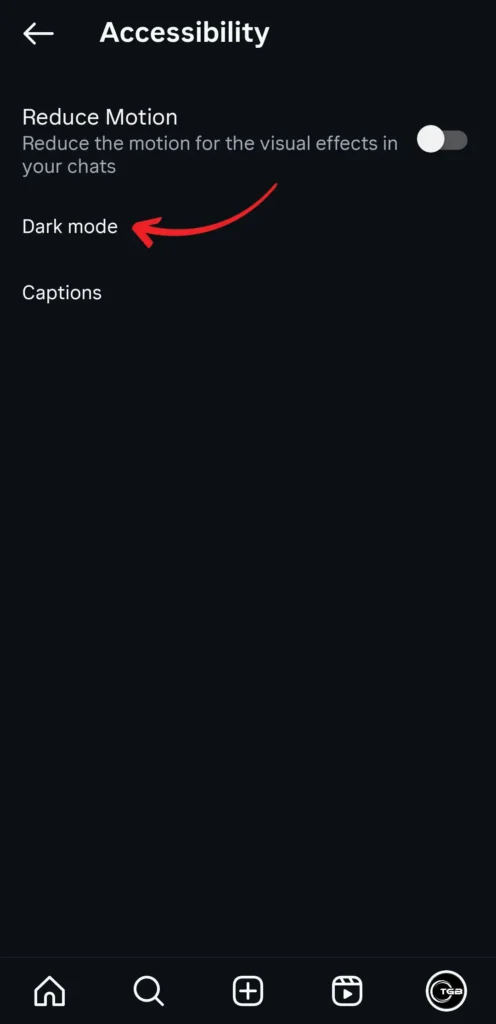
Step 7: Toggle Dark Mode off to switch back to the light theme.
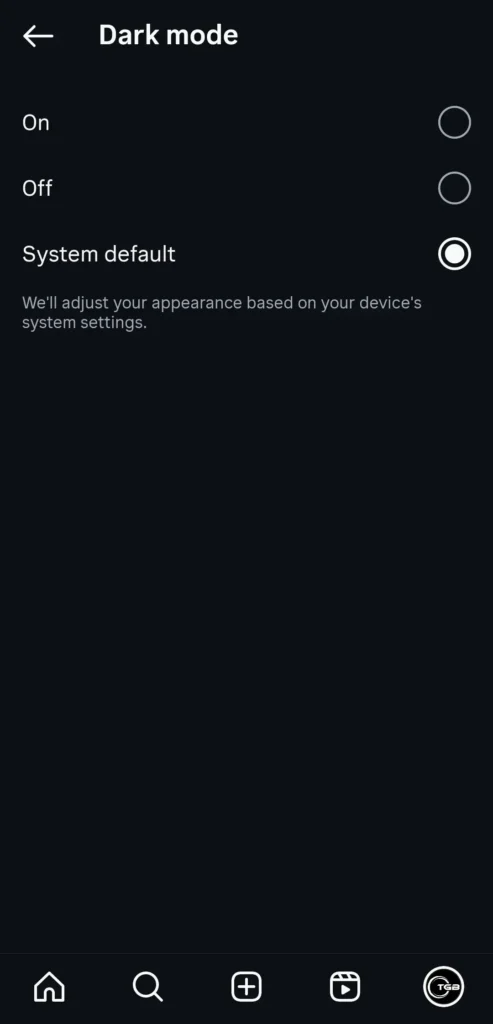
How to Turn Off Instagram Dark Mode via Device Settings
Instagram uses the default system theme on some devices, and if your device has the dark mode on you can turn it off in the following eays as per devices:
- iPhone (iOS): Go to Settings and scroll down to Display & Brightness (you can search in the search box). Select Light mode from the options.
- Android: Open Settings on your phone and go to Display. Look for Dark Theme and then turn it off.
- Desktop: Switch the system or browser theme to light mode if you are using Instagram on a browser on your desktop.
Tips for Switching Themes Easily
Switching between light and dark modes is very important for you to use app in light or dark mode as per your convenience or preference. You may want the light theme to view contents in visualling appealing manner, in the same time may want the dark mode to protect your eyes from strains and other effects.
Do the following to switch between dark mode and light modes easily:
- You can use the device’s quick settings (motification panel) to toggle between light and dark themes quickly and easily.
- Check for new updates and update your Instagram application when available, as the interface and feed appearance settings changes with new updates.
- If you want dark mode only on Instagram, keep system Dark Mode off on your device settings and change dark mode settings on Instagram manually.
Conclusion
It is simple and easy to turn off dark mode on Instagram and can be done in two different ways that is through the Instagram app and through phone display settings. The reasons to change the modes on Instagram varies among users namely appealing visuals, comfort, easier readability and light interface. The steps mentioned in this post would help you use the mode that you prefer easily without much efforts.